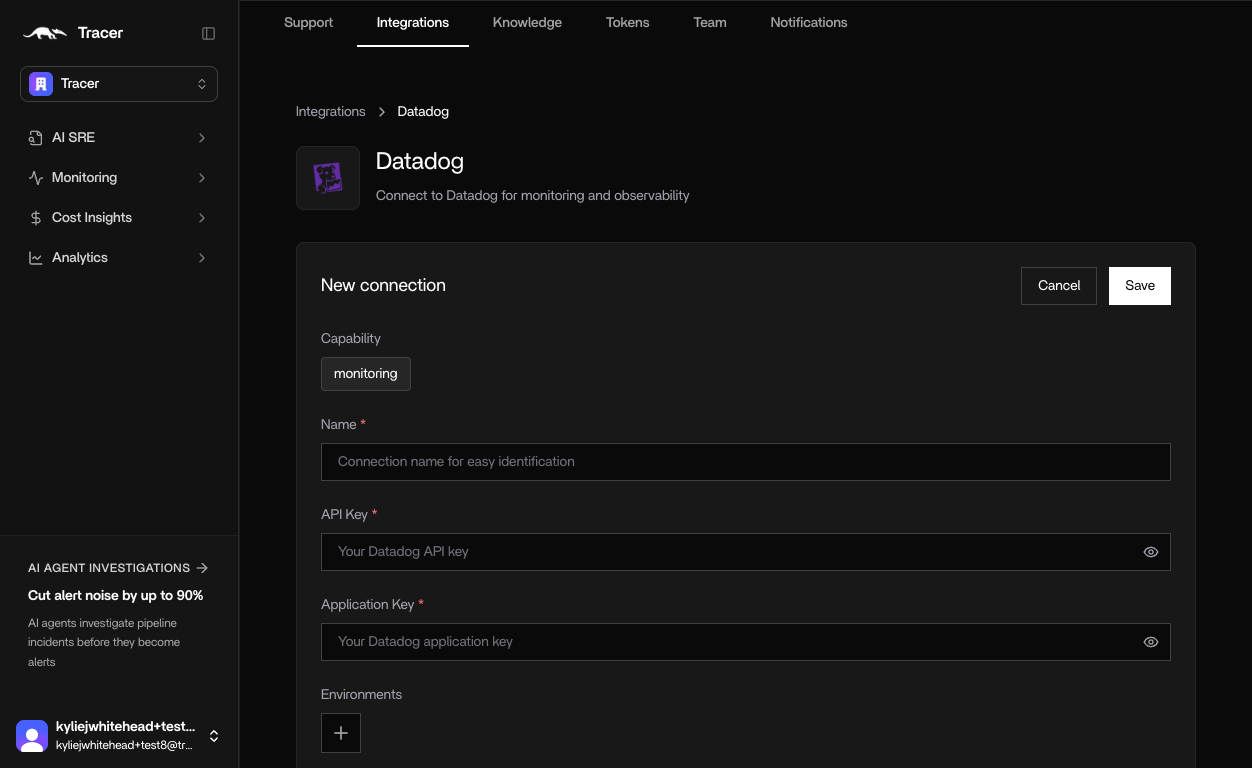
Create an account
- Sign up at app.tracer.cloud
-
Create a workspace.
Connect Tracer to Slack
-
To start seeing incident investigations, you’ll need to connect Tracer to Slack. Sign in with Slack to start setting up the connection.
.png?fit=max&auto=format&n=6RQuWf9hpcHFPckz&q=85&s=10a7ffadd57e8b87a6a4ef3600ef9210 "Sign In With Slack(1)")
-
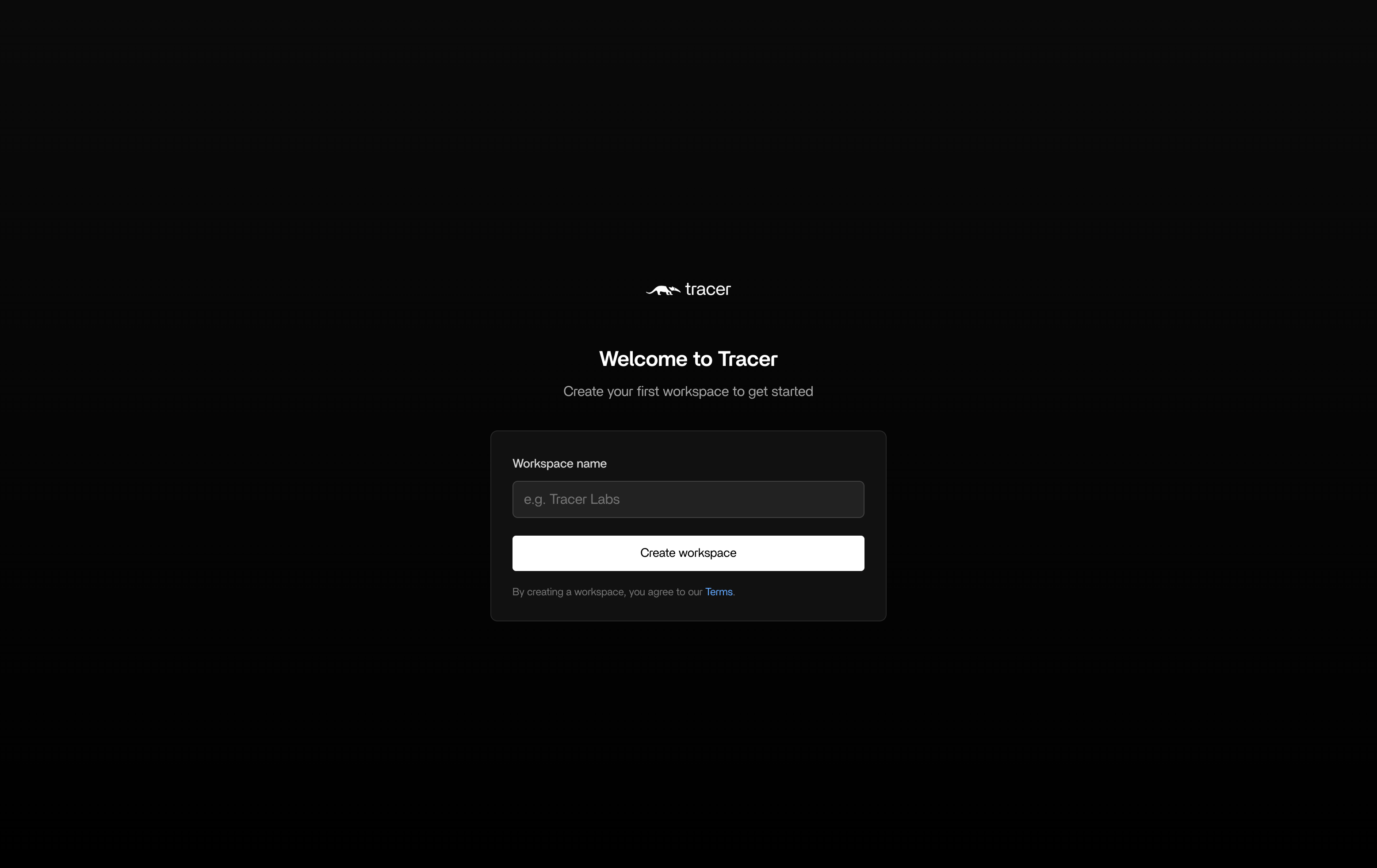
In Slack, pick your workspace and click Allow.
- In Slack, open your alerts channel.
- Type /add and click Add apps to this channel
- Search Tracer and click Add
-
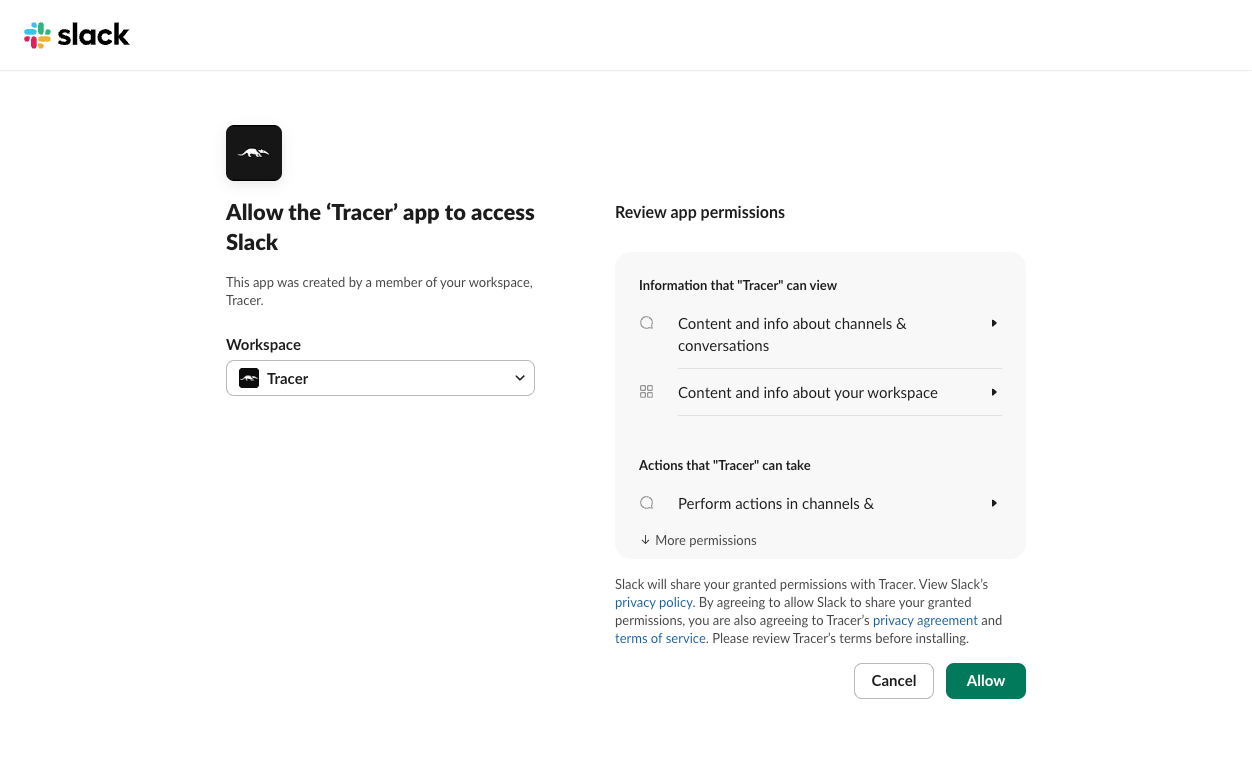
In Tracer, open Integrations → Slack. Under Channel Mappings click +Add. Select the channels you’ve added Tracer to, and select which types of alerts you’d like Tracer to respond to.
Connect integrations
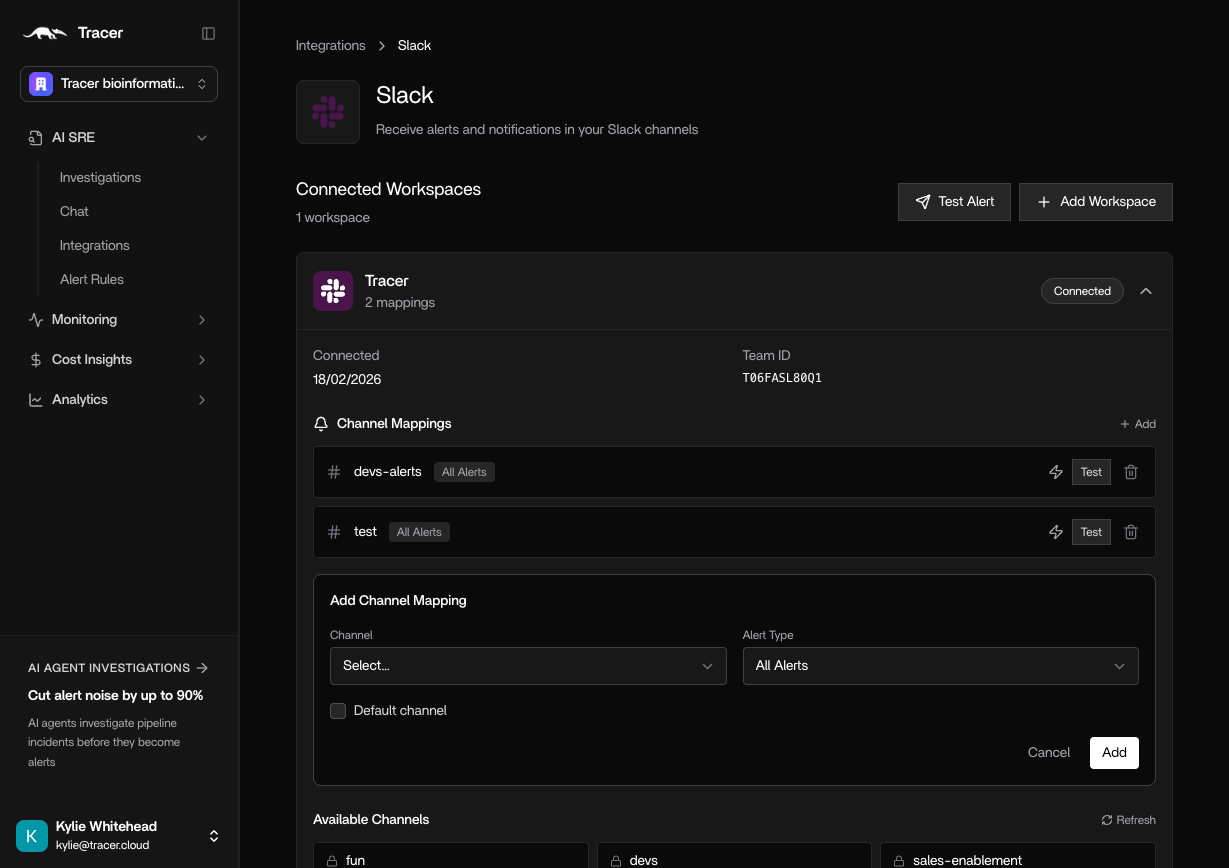
Each integration follows a simple, guided flow. Let’s look at Datadog as an example.- Name - Helps distinguish between different instances
- API Key - in Datadog, create a new API key and copy and paste into Tracer.
-
Application Key - In Datadog, create a new Application Key and copy and paste into Tracer.